AxisForge pairs with a plug-and-play USB dongle over BLE 5.0 and
sends real keyboard shortcuts to any CNC or laser software —
no drivers, no wires, no software to install on your machine's computer.
📡 BLE 5.0 · 15 m range🔌 No drivers needed🔒 Deadman safety8 built-in profiles
From pocket to pendant in seconds — see exactly how it feels to jog your CNC wirelessly.
⚡
Instant ResponseBLE 5.0 — sub-10 ms latency, up to 15 m wireless range
🔒
ARM / DISARM Safety GateOne tap locks all jog commands — machine stays safe
🎯
0.01 mm PrecisionFive increment steps from 0.01 mm to 25 mm — dial it in exactly
🔌
Plug & Play DongleUSB HID — no drivers, no software install on the CNC computer
🛠️
8 Built-In Software ProfilesCarbide Motion, LightBurn, UGS, Mach3 & more — ready out of the box
In Action
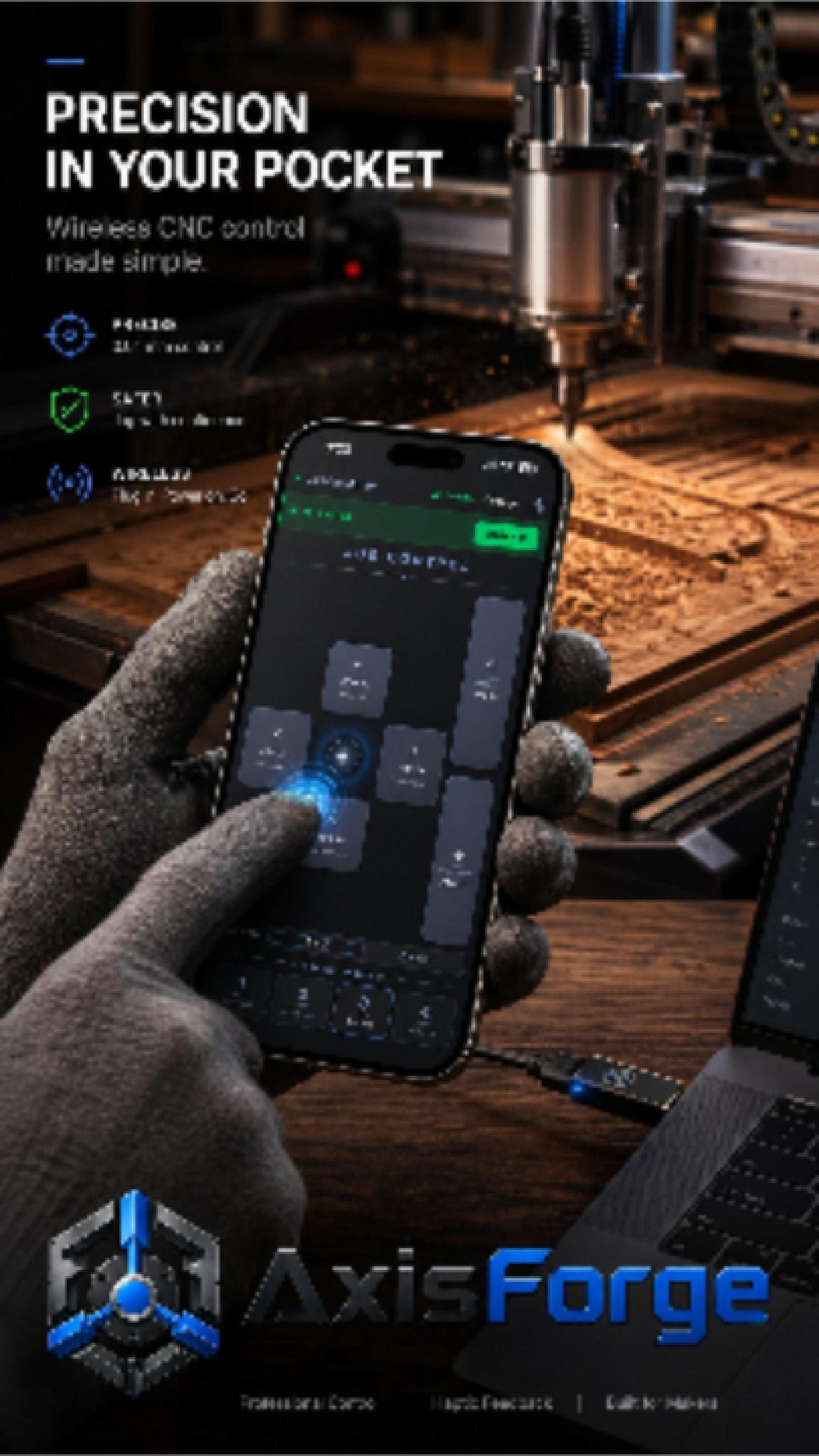
Precision in your pocket.
From plug-in to full jog control in under a minute — real wireless CNC control with zero friction.
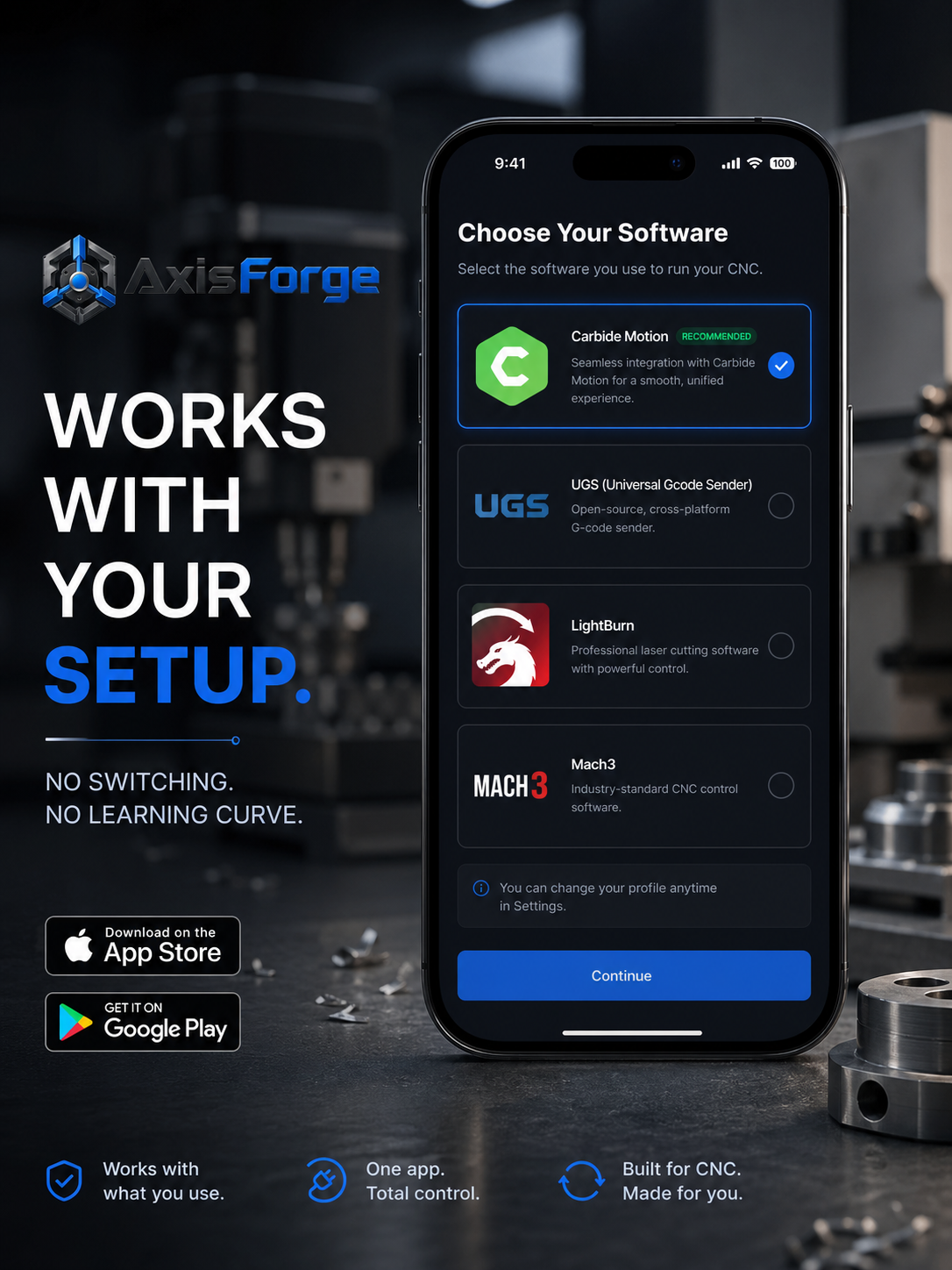
Works With Your Setup
One app. Every machine. No switching. No learning curve.
Select your CNC or laser software from 8 pre-configured profiles — Carbide Motion, UGS, LightBurn, Mach3, OpenBuilds, Easel, and more. The right key bindings are already loaded. Just pick your software and start jogging.
The app is free on iOS and Android. The dongle is all the hardware you need.
Designed for the hobbyist CNC and laser shop — not industrial equipment with industrial pricing.
Precision In Your Pocket
0.01 mm incremental control, ARM / DISARM safety gate, and live Bluetooth signal strength — all from your phone, up to 15 m from your machine.
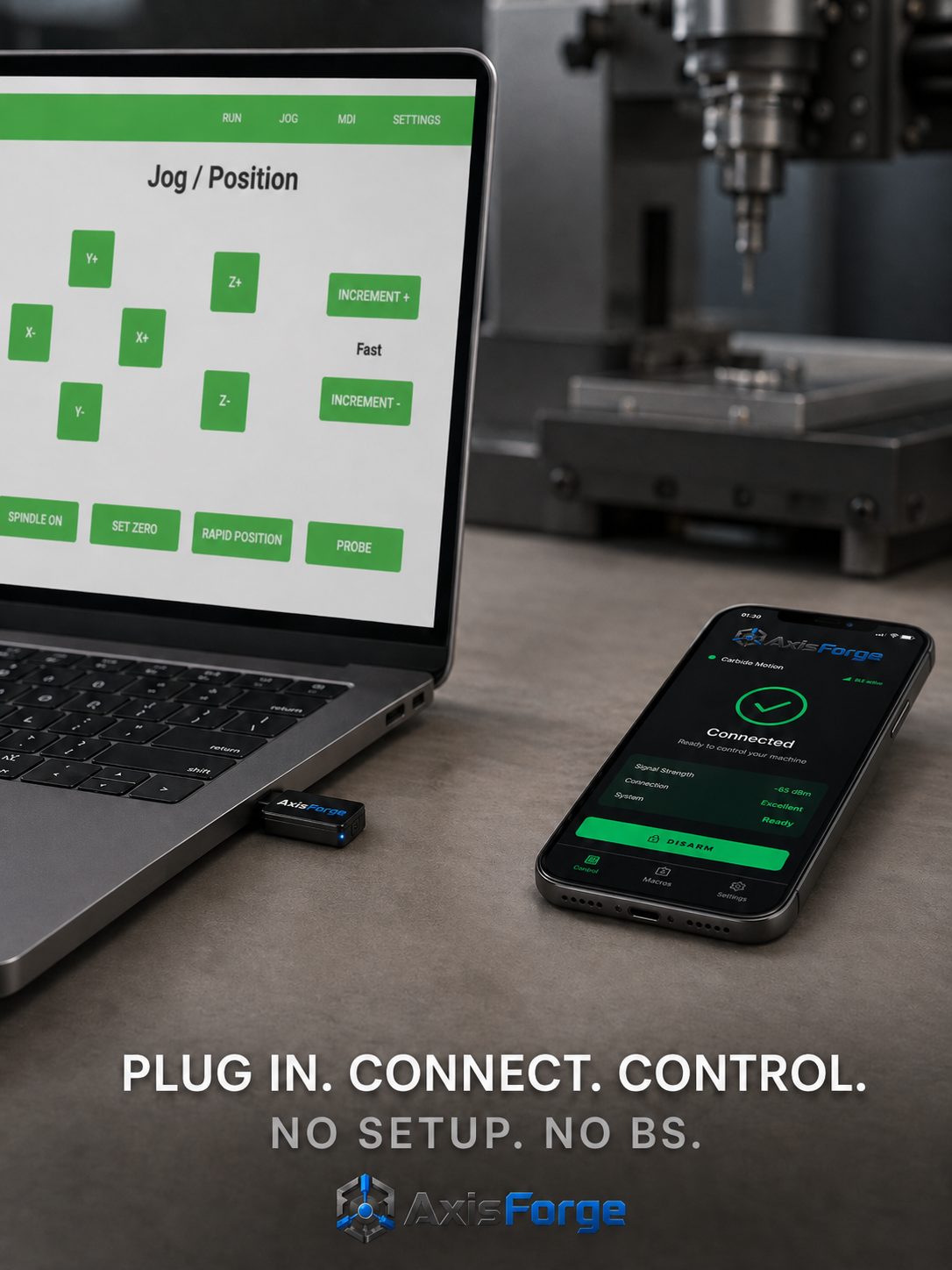
Plug In. Connect. Control.
No setup. No drivers. No BS. Plug the AxisForge dongle into any USB port, open the app, and you're jogging wirelessly — in under a minute, every time.
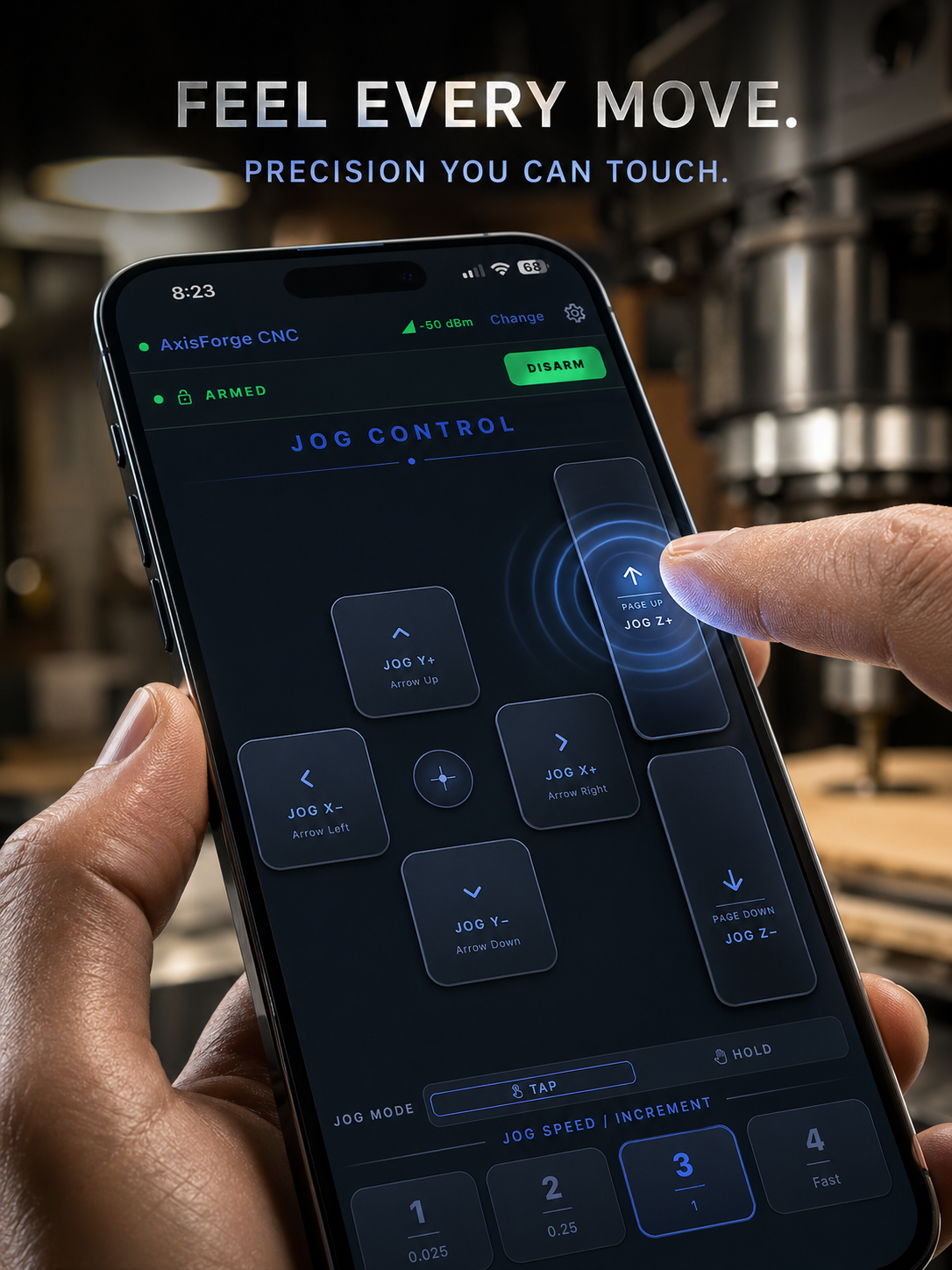
Feel Every Move
Haptic feedback on every button press gives tactile confirmation of each command — even with shop gloves on. Precision you can actually touch.
Wireless CNC. Zero Friction.
One small USB dongle. Works on any machine running Windows, macOS, or Linux — no drivers, no software install. Your computer sees it as a standard keyboard.
The dongle arrives pre-flashed and ready. No configuration needed on your CNC or laser computer.
STEP 01
🔌
Plug In the Dongle
Insert the AxisForge dongle into any USB port on your CNC, laser, or 3D printer computer. It registers instantly as a standard USB keyboard — no drivers, no software, works on Windows, macOS, and Linux.
STEP 02
📡
Pair & Pick Your Software
Open AxisForge on your phone. It scans for nearby dongles and connects in seconds. Then pick your software from the built-in profile list — Carbide Motion, LightBurn, UGS, Mach3, and more are already configured.
STEP 03
🕹️
Arm & Jog
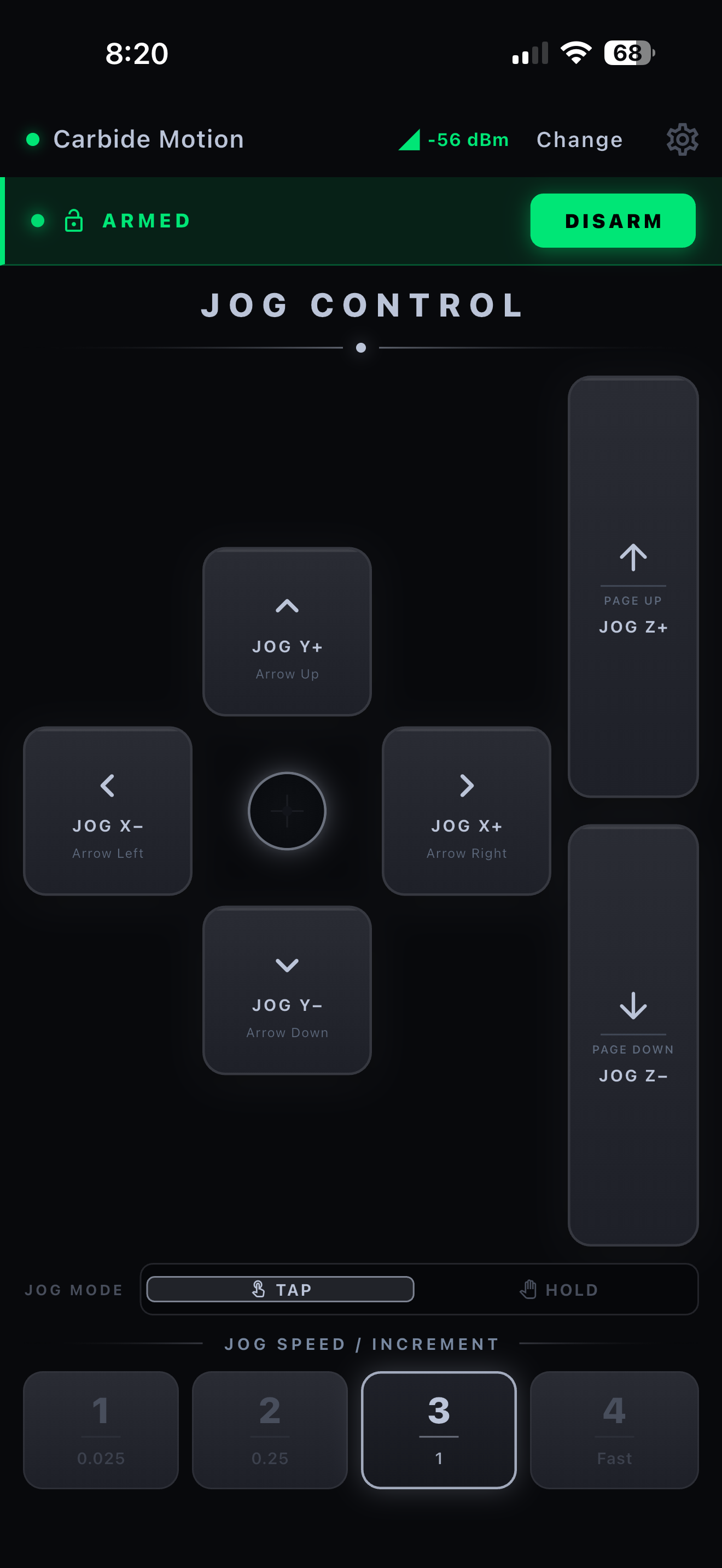
Tap ARM to enable jog commands, then use the X/Y/Z pad to move your machine. Switch between TAP (single-step) and HOLD (continuous motion) mode right from the jog screen.
Features
Built for the hobby shop.
Every feature is designed around real hobbyist CNC and laser workflows — safety first, then speed and flexibility. No industrial price tag.
📡
BLE 5.0 — Up to 15 m Range
Stay connected across your shop. Real-time RSSI signal strength shown in the app bar with colour-coded bars and dBm value so you always know your link quality.
🔒
ARM / DISARM Safety Gate
Jog commands are blocked until you explicitly arm the pendant. A 500 ms BLE heartbeat watchdog auto-disarms the moment the connection drops or the app closes.
✋
Deadman Mode
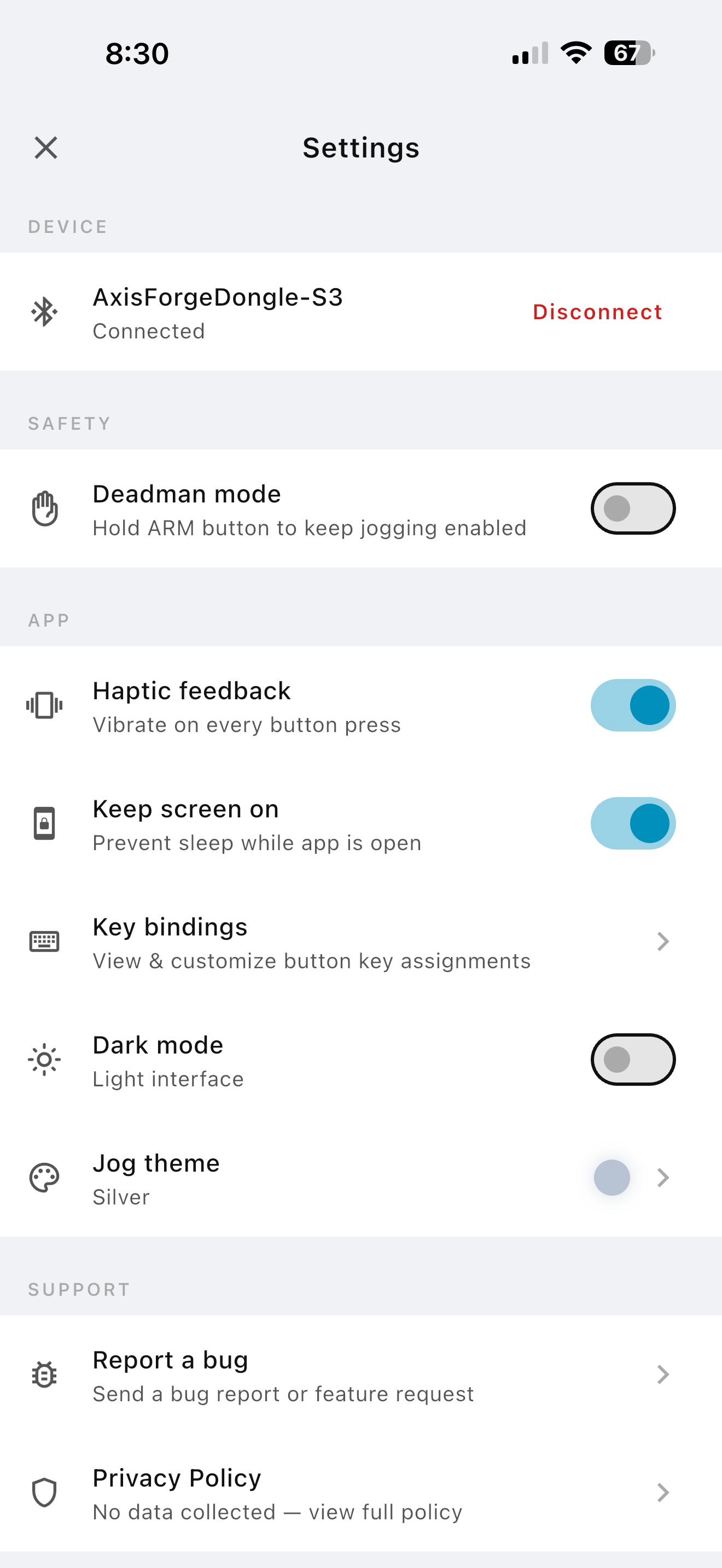
Hold ARM to keep jogging active. Release your finger — machine stops and pendant disarms instantly. Industrial-grade safety for hands-on work.
🛑
Feed Hold — Always Active
Emergency Feed Hold works even when disarmed. One tap halts all machine motion immediately, regardless of the current arm state.
🔁
TAP & HOLD Jog Modes
TAP sends one keypress per touch — perfect for precise incremental moves. HOLD auto-repeats up to 12 presses/sec for rapid continuous traversal. Toggle right on the jog screen.
📐
5 Jog Increments
0.01 / 0.1 / 1 / 10 / 25 mm standard steps. Carbide Motion uses its native 4-step system (0.025 / 0.25 / 1 / Fast). Your last selection is remembered every session.
⌨️
140+ Custom Key Bindings
Assign any key to any jog direction — letters, F-keys, numpad, arrow keys, and modifier combos (Ctrl, Shift, Alt). Makes AxisForge compatible with virtually any CNC software.
📶
Live RSSI Signal Meter
Real-time Bluetooth signal strength displayed in the app bar with colour-coded bars (green/orange) and exact dBm reading. Know your range before you move further from the machine.
🔗
Auto-Reconnect
AxisForge remembers your last dongle and reconnects automatically every time you open the app — no need to scan or select it again.
🌙
Dark & Light Theme
Dark for the dim shop corner, light for the bright workbench. Switch anytime — your preference is saved between sessions.
📳
Haptic Feedback
Optional vibration on every button press gives tactile confirmation so you know the command was sent — even with gloves on.
💡
Keep Screen On
Prevent your phone from going to sleep while jogging. Screen stays on as long as the app is open — no more unlocking mid-job.
App Screenshots
See it in action
Everything you need to jog your CNC wirelessly — clean, fast, and built for the shop floor.
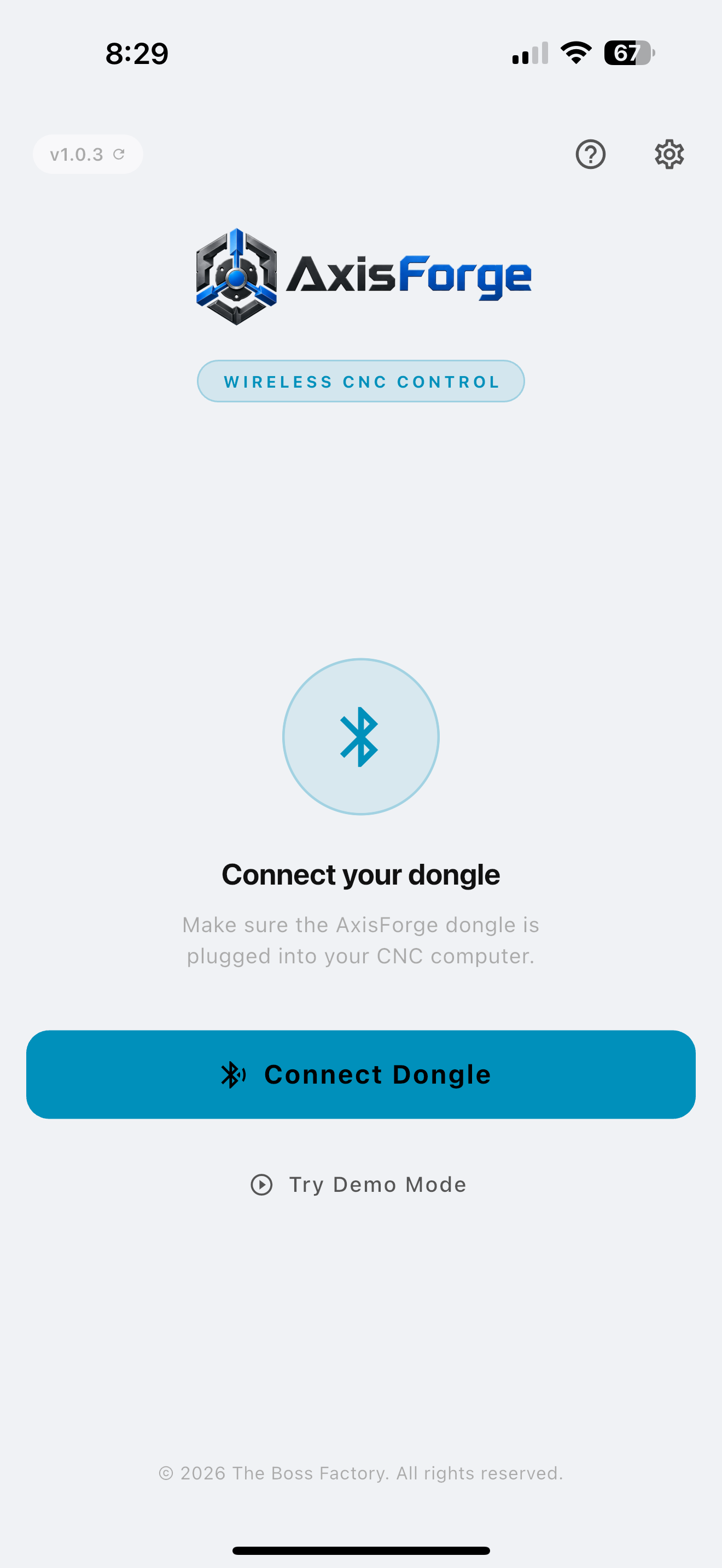
One tap to connect
Open the app, plug in your dongle — AxisForge scans and connects via Bluetooth automatically.
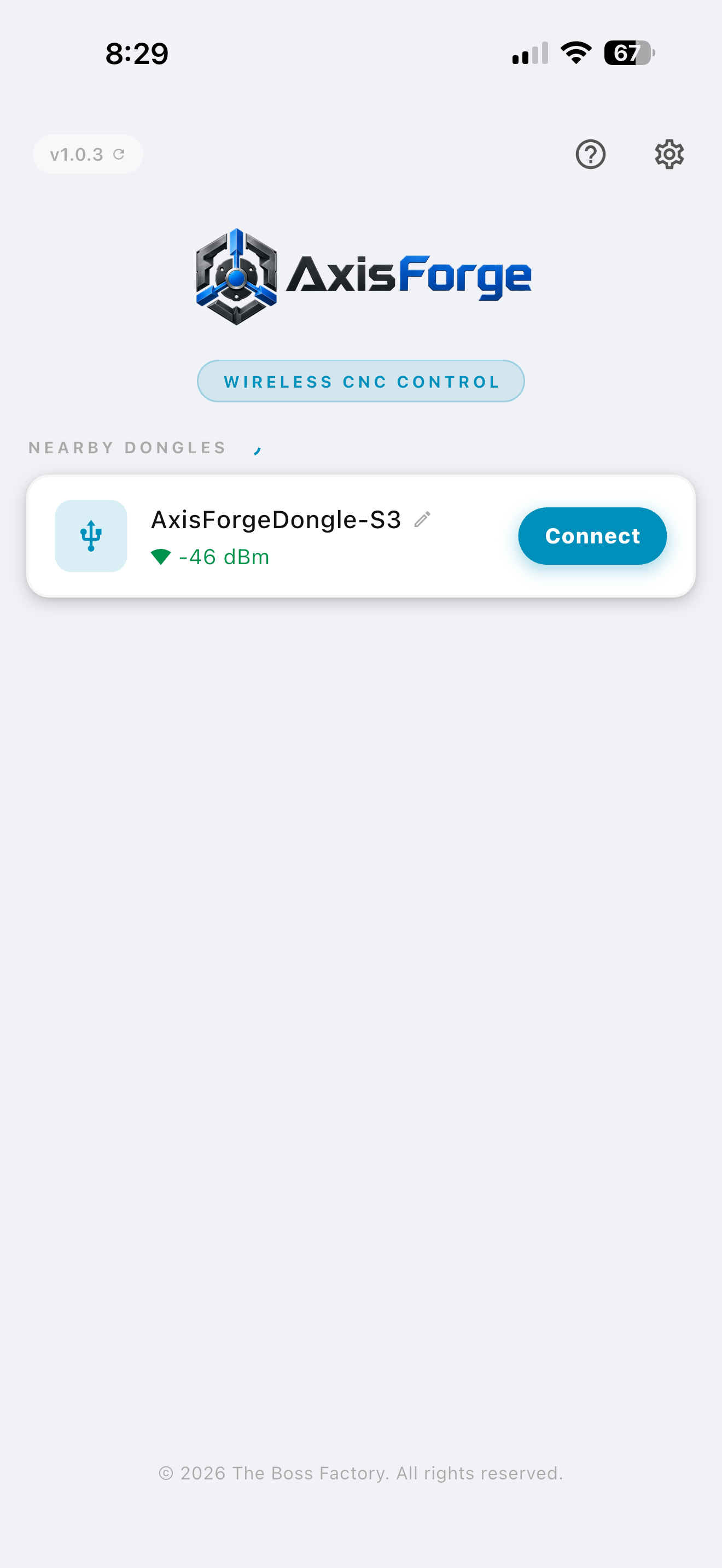
Instant discovery
Your AxisForge dongle appears the moment it's in range. Tap Connect and you're live.
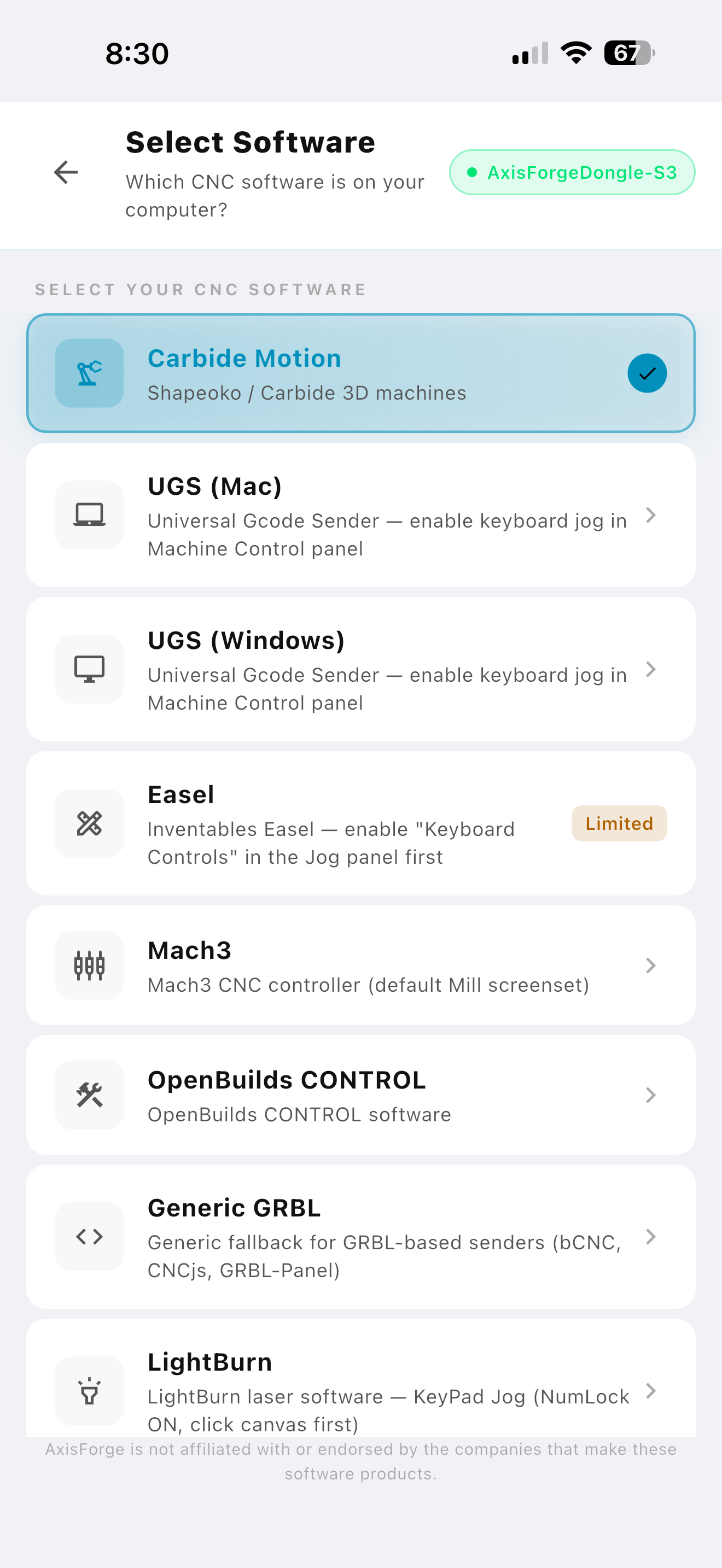
Pick your software
Choose from 8 pre-configured profiles — Carbide Motion, UGS, LightBurn, Mach3, Easel, and more.
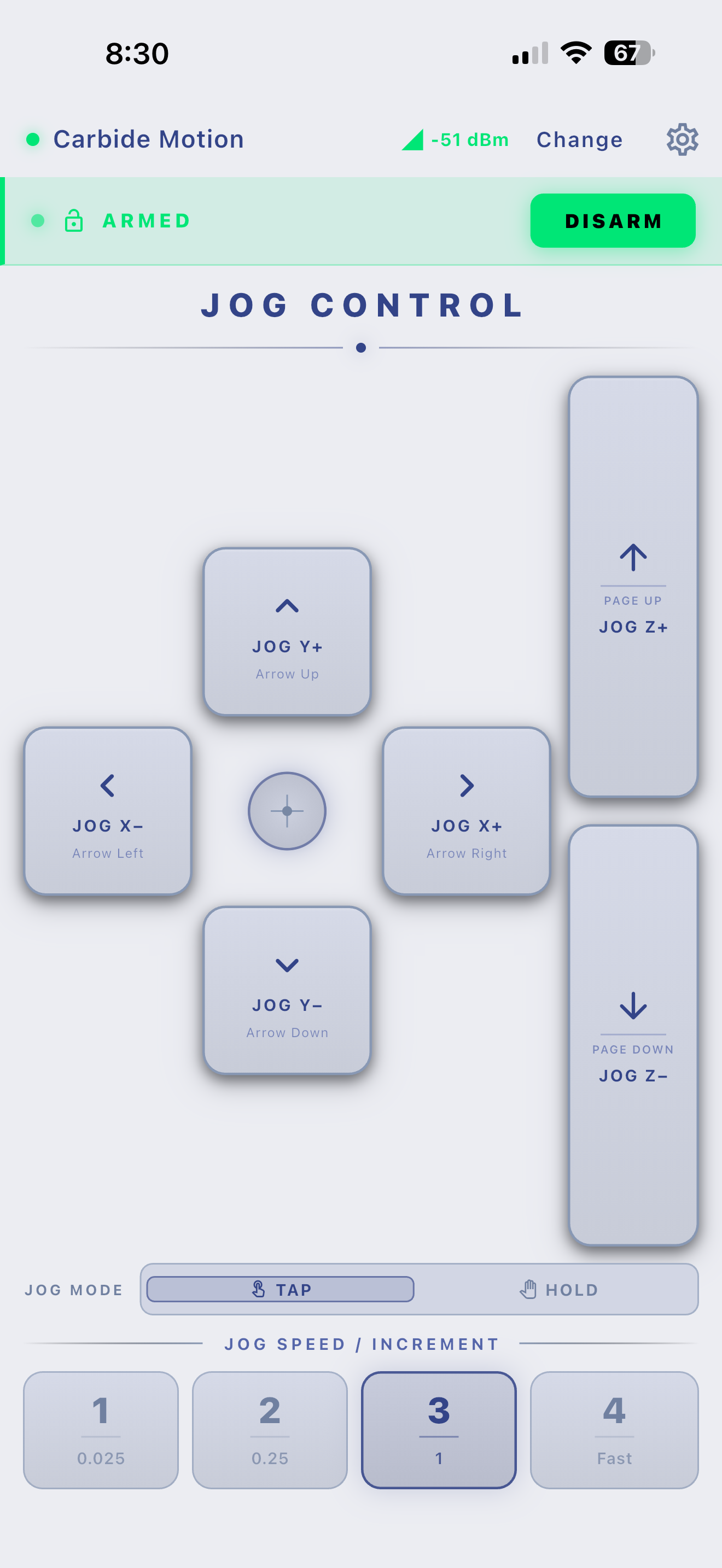
Full jog control
X, Y, and Z axis buttons with 4 speed presets. Tap or hold mode. Dead-man safety built in.
Dark & light themes
Switch between dark and light interface to match your shop lighting and personal preference.
Fully customizable
Haptic feedback, custom key bindings, deadman mode, jog themes — tuned exactly to your workflow.
Built-in guides
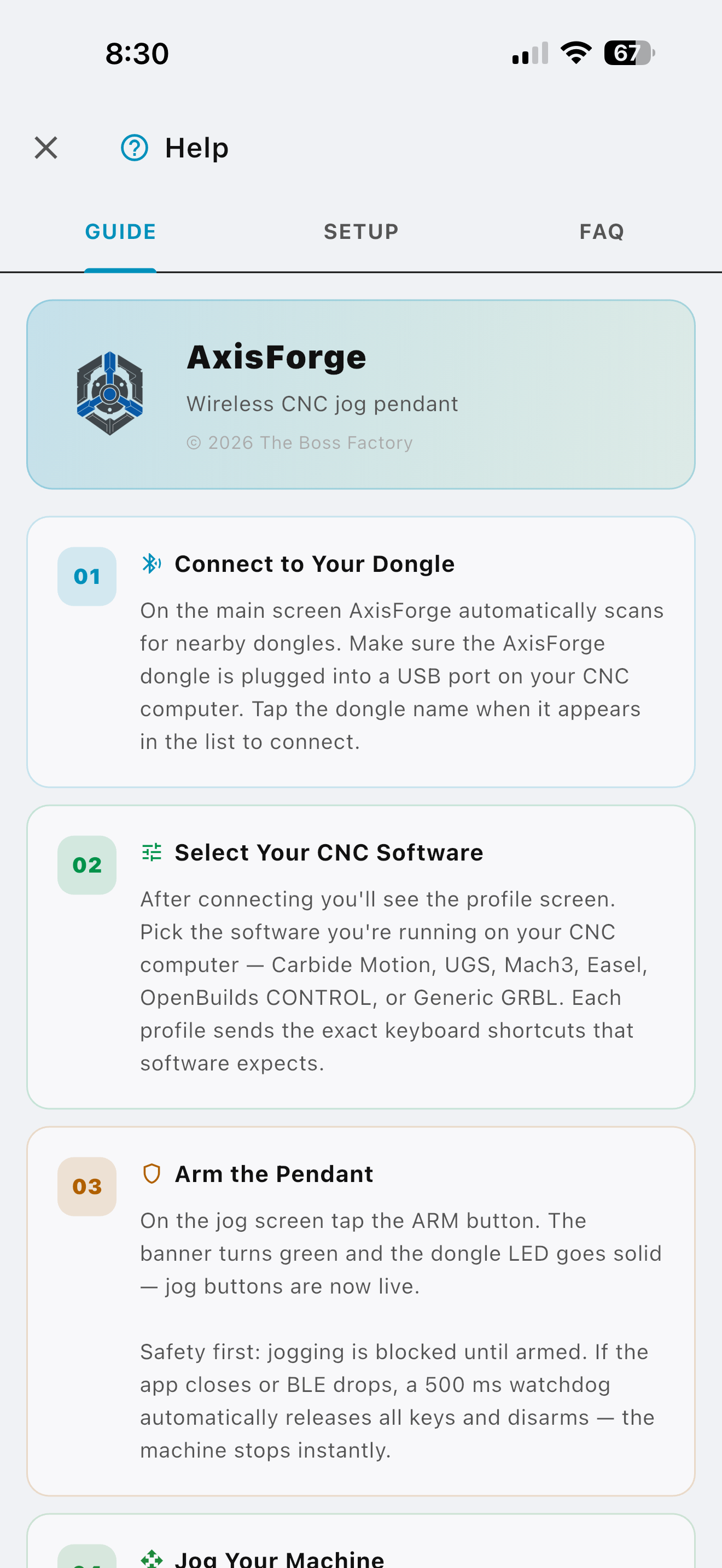
Step-by-step setup instructions and usage tips right inside the app — no manual needed.
Compatibility
One pendant. Every machine.
8 built-in profiles pre-configured with the exact key assignments each program expects — plus a fully custom slot for anything else.
Carbide Motion
Shapeoko · Nomad · Windows / macOS
Purpose-built profile for Carbide Motion. Increment steps match Carbide Motion's own native precision presets — 0.025 mm, 0.25 mm, 1 mm, and Fast — so the machine behaves exactly as if you were using a physical pendant.
Laser cutters & engravers · Windows / macOS / Linux
Full X, Y, and Z jog control for any laser running LightBurn. The profile is trimmed for laser workflows — increment steps and feed rate are hidden so you only see what matters on the shop floor.
Dedicated profile for UGS on Windows. Full X, Y, and Z jog control with Feed Hold and Resume — tuned for the Windows version of Universal Gcode Sender.
Configured to match Mach3's default jog assignments out of the box. Full X, Y, and Z control with Feed Hold and Resume — no changes needed in your Mach3 configuration.
Drop-in compatibility with OpenBuilds CONTROL. Full X, Y, and Z jogging with Feed Hold and Resume — works immediately with a stock OpenBuilds install, no setup required.
Inventables Easel · Browser-based · Windows / macOS
Full jog support for Easel. Because Easel runs in the browser, just make sure you click on the Easel canvas before jogging so the window has focus — then jog freely from your phone.
A universal profile for any GRBL-compatible sender — bCNC, CNCjs, Candle, and more. If your specific sender isn't listed, this profile covers it. Use Custom Layout if you need to fine-tune the assignments.
Not on the list? Build your own profile. Assign any button to any action with 140+ key options and full modifier support. AxisForge can work with any software that accepts jog input — on any platform.
AxisForge is built around the same deadman-switch philosophy used in industrial equipment. Multiple independent layers ensure the machine stops the moment you lose control.
ARM/DISARM gate — jog commands are blocked until explicitly enabled
500 ms BLE watchdog — auto-disarms within 500 ms of any connection loss
Deadman mode — machine stops the instant you lift your finger from ARM
Feed Hold always active — works even when the pendant is fully disarmed
Heartbeat signal — sent to the dongle every 500 ms while armed to confirm liveness
App-close disarm — closing the app or losing BLE immediately disarms the dongle
ARMEDJog commands active — red LED solid on the dongle
DISARM
DISARMEDAll jog commands blocked — machine safe
ARM
🛑FEED HOLD
Always active regardless of arm state. One tap halts all machine motion immediately.
✋DEADMAN MODE
Hold ARM to jog. Release your finger — machine stops immediately and pendant disarms. No button press required to stop.
By the Numbers
Built to spec.
Wireless
BLE 5.0
Bluetooth Low Energy · up to 15 m
Watchdog
500 ms
Auto-disarm on connection loss
HOLD mode speed
12×/sec
Max auto-repeat rate in HOLD mode
Built-in profiles
8 + 1
8 pre-configured + 1 fully custom
Custom keys
140+
Letters, F-keys, numpad, modifiers
Jog increments
5 steps
0.01 / 0.1 / 1 / 10 / 25 mm
Platforms
iOS + Android
Free app — no subscription
CNC computer
No setup
USB HID keyboard — Windows / macOS / Linux
FAQ
Common questions.
Yes. The dedicated Carbide Motion profile uses keys 1, 2, 3, and 4 to step through Carbide Motion's native increments — 0.025 mm, 0.25 mm, 1 mm, and Fast mode. Arrow keys jog X and Y, Page Up/Down jogs Z, and Space sends Feed Hold. Works with Shapeoko, Nomad, and any other machine running Carbide Motion.
Yes. AxisForge has a dedicated LightBurn profile that sends the exact keyboard shortcuts LightBurn uses for jogging: Alt+Ctrl+] for X+, Alt+Ctrl+[ for X−, Shift+Ctrl+] for Y+, and Shift+Ctrl+[ for Y−. Page Up/Down handles Z, and Escape sends Feed Hold. Just select the LightBurn profile and make sure the LightBurn window is focused on your CNC computer.
Yes. AxisForge includes separate built-in profiles for UGS on macOS and UGS on Windows. Both use arrow keys for XY and Page Up/Down for Z. Before jogging, check "Enable Keyboard Movement" in the UGS Machine Control panel — it is off by default. Feed Hold and Resume do not have keyboard shortcuts in UGS and must be used via the on-screen buttons.
Yes. The Mach3 profile uses the default Mill screenset keys: Arrow keys for XY jogging, Page Up/Down for Z, Spacebar for Feed Hold, and Alt+R for Cycle Start/Resume. No changes to your Mach3 configuration needed.
Yes. The OpenBuilds CONTROL profile uses standard arrow keys for XY and Page Up/Down for Z — matching OpenBuilds' default key assignments. Plug in and start jogging immediately.
Yes. The Easel profile uses arrow keys and Page Up/Down. Because Easel runs in a browser, the browser window must have keyboard focus — click directly on the Easel canvas before pressing jog buttons. The keystrokes reach the PC; the browser just needs to be the active window.
Likely yes. Use the Generic GRBL profile which sends arrow-key jog commands that most GRBL senders support. If your sender uses different keys, switch to Custom Layout in Settings → Key Bindings and assign any of 140+ available keys to each direction.
Deadman mode requires you to continuously hold the ARM button to keep jogging enabled. The moment you lift your finger, the pendant disarms automatically and all jog commands stop. If you drop your phone or get distracted, the machine stops on its own — no action required. It's the same safety philosophy used in industrial equipment.
TAP mode sends a single keypress each time you tap a jog button — ideal for precise incremental moves where you want to step exactly one increment at a time. HOLD mode auto-repeats the keypress while your finger is held down, enabling continuous motion at up to 12 presses per second — great for rapid traversal. You can switch between TAP and HOLD directly on the jog screen at any time, without going into Settings.
Standard profiles use five increments: 0.01 mm, 0.1 mm, 1 mm, 10 mm, and 25 mm. The Carbide Motion profile uses a custom set that matches Carbide Motion's native system: 0.025 mm, 0.25 mm, 1 mm, and Fast mode (triggered by keys 1, 2, 3, and 4). Your last increment selection is saved between sessions for every profile.
No. The AxisForge dongle appears to the computer as a standard USB HID keyboard. Windows, macOS, and Linux all support USB HID keyboards natively — no drivers, no software install, no admin rights required. Just plug in the dongle and it works.
BLE 5.0 has a theoretical range up to 40 m, but real-world range in a workshop with metal machinery is typically 10–15 m with clear line of sight. USB 3.0 cables and hubs emit interference at 2.4 GHz that can reduce range — plug the dongle into a USB 2.0 port if possible. The live RSSI signal strength indicator in the app bar shows your current connection quality in real time.
Check the app's Bluetooth permission first — this is the most common cause by far. Having Bluetooth switched on is not the same thing as AxisForge being allowed to use it, and the app only asks once.
On iPhone/iPad — either route works: Settings → Apps → AxisForge → Bluetooth, or Settings → Privacy & Security → Bluetooth and find AxisForge in the list. Make sure the toggle is green. (On iOS 17 and older there is no Apps section — scroll to AxisForge near the bottom of the main Settings list instead.)
On Android: Settings → Apps → AxisForge → Permissions → allow Nearby devices. On Android 11 and older, allow Location as well and make sure Location Services is switched on, because Android requires it for Bluetooth scanning. Then tap Scan Again in the app.
Two other things that catch people: the dongle needs a data USB cable or adapter — plenty carry power only, which lights the dongle up without the computer ever seeing it. And the dongle should not be paired to your computer's own Bluetooth: it talks to one device at a time, so if your laptop has claimed it, your phone cannot see it. If none of that helps, you can reinstall the dongle software.
Watch the red light. Ignore the blue one.
The blue LED is a battery-charge indicator wired directly to the dongle's charging circuit — it is not connected to the dongle's processor at all, and it blinks continuously whenever the dongle has power. That is completely normal and means nothing about whether the dongle is working. It cannot be turned off.
The red LED is the real status light: • Double-blink, then a pause — powered, but no computer has detected it. Usually a charger instead of a computer, a dead port, or a power-only cable. • Fast blink — ready to pair, waiting for the app. • Slow blink — connected to the app, disarmed. • Solid on — connected and ARMED. Jog commands are live and the machine will move. • Smooth fade in and out — the dongle is in firmware-update mode. See Dongle Recovery.
AxisForge asks for Bluetooth permission once, the first time you open it. If that prompt was dismissed or declined, the app will never ask again — it simply scans and finds nothing, with no error to tell you why. Grant it manually: on iPhone/iPad, Settings → Apps → AxisForge → Bluetooth (or Settings → Privacy & Security → Bluetooth, then find AxisForge). On Android, Settings → Apps → AxisForge → Permissions → Nearby devices → Allow. Reopen the app and scan again. If you would rather start clean, deleting and reinstalling the app brings the prompt back — your profiles and key bindings are stored on the device, so note any custom bindings first.
Tap ARM first — the banner must show ARMED in green before any jog commands are sent. Next, check that your CNC or laser software window has keyboard focus on the CNC computer — click on it. Verify you selected the correct software profile in the app. As a quick test: open Notepad on the CNC computer, click inside it, then jog in the app — if you see keystrokes appearing in Notepad, the issue is simply that your CNC software needs to be the active window.
Yes. In Settings → Key Bindings you can assign any of 140+ keys to each jog direction — including all letters A–Z, function keys F1–F12, numpad 0–9, arrow keys, and modifier combinations using Ctrl, Shift, and Alt. This makes AxisForge compatible with virtually any software that accepts keyboard jog commands.
Yes. AxisForge saves the ID of your last paired dongle and reconnects to it automatically every time you open the app. If you have multiple machines, you can go back to the scan screen to switch to a different dongle at any time.
Both dongles work with the same app and deliver the same jogging experience. The difference is range. The Standard is the compact, affordable option — best within 3–5 m (10–16 ft) of your machine. The Pro is the upgraded version built for larger shops, garages, and setups where the machine isn't right next to the computer. It extends range up to 80–90 ft in ideal conditions. If you're on the fence, get the Pro — range is the one thing you'll wish you had more of.
Get the Standard if your CNC computer sits right next to or near your machine and you typically stand close to it while operating. Get the Pro if you have a larger shop or garage, your machine is not right beside your computer, you work around a lot of metal or electrical equipment that kills wireless range, or you just want more freedom and fewer connection dropouts. CNC and laser setups are full of metal, motors, dust collectors, and interference — the Pro is built for that environment.
No. The Standard and Pro use the exact same app, the same pairing process, and the same profiles. You plug it in, pair it, and jog — just with more range on the Pro. No configuration needed for either version.
The AxisForge USB dongle is available on TheBossFactory.ca and Etsy. The AxisForge app is free to download on iOS and Android.
Hardware
Choose Your Dongle
Same app. Same setup. Two hardware options — pick the one that fits your shop.
AxisForge Standard
The affordable compact option.
3–5 m / 10–16 ft
Compact wireless control
Best within 3–5 m of your machine
USB-C & USB-A ready
Great for small CNCs, desktop lasers, and compact workshops
Works perfectly when you're usually standing near your computer
If your machine and computer are close by, Standard does the job without overcomplicating things.
Built for garages, larger shops, and production setups
USB-C & USB-A ready
Ideal for larger CNCs, big laser setups, and users who want freedom around the machine
Fewer "why did it disconnect?" moments
CNC and laser setups are surrounded by metal, motors, dust collectors, and electrical noise — all of which kill wireless range fast. The Pro is built for that environment.
AxisForge keeps getting better. Firmware and app updates roll out automatically — your dongle stays current over Bluetooth through the app, with nothing to download or install by hand.
Firmware v1.1.0June 2026Fix
Jog-speed keys now work on every profile. Changing the jog speed/increment in Carbide Motion (and the other profiles) now sends the correct keystroke to your machine.
Wireless auto-update. Firmware updates now install automatically over Bluetooth through the app.
App v1.0.27June 2026Safety
The controller now fully releases a held jog the instant you disarm or leave the jog screen.
Leaving the app in the background now disarms the dongle immediately instead of waiting for the safety timeout.
Smoother, more reliable low-latency connection while you're armed and jogging.